Which way do you want to play?
Print cards
Make a set of cards, download them as a PDF, and print. Everyone plays on paper while one person calls. Every card is different.
Play online, everyone on their own phone
Share one link or code. Each player gets their own card on a phone, tablet or laptop, with no app and no account. Every call shows up on every phone.
You can also mix the two in one game: some people on paper, some on phones.
Printing cards
The card maker has three steps: choose what goes on the cards, design them, then print or play. Nothing to sign up for.
Choose words, numbers or pictures
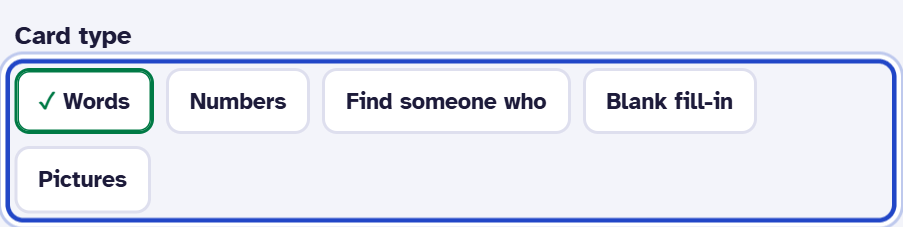
Pick a card type first. Words and Pictures suit parties, classrooms and showers. Numbers are classic 1–75 bingo. Find someone who is an icebreaker. Blank fill-in prints empty grids for players to write in.
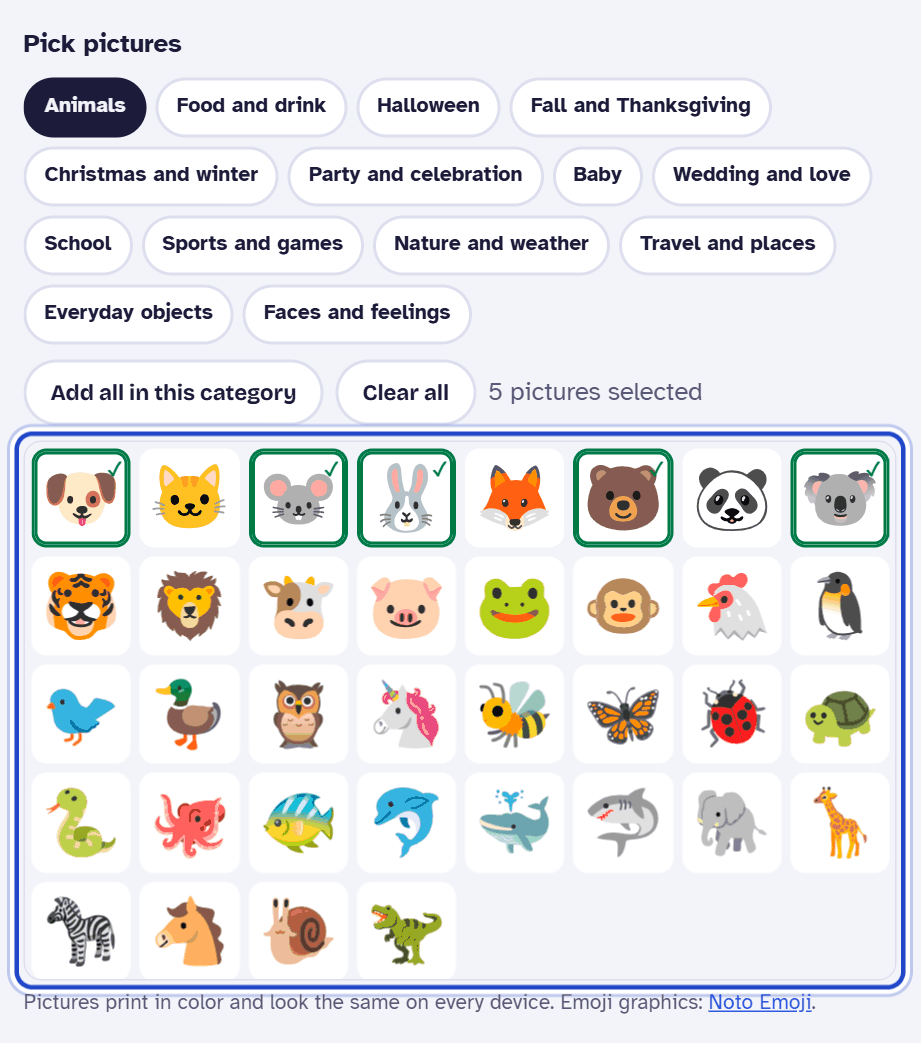
For Pictures, pick a category, then tap the pictures you want. A 5 × 5 card with a free space needs at least 24.
Paste your own list
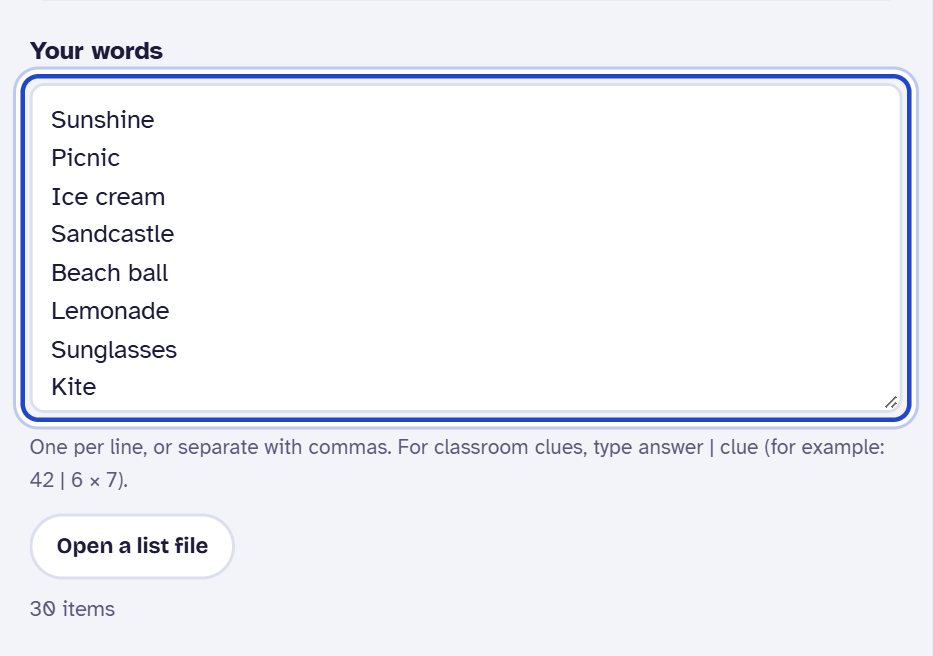
For words, start from a ready-made list or type your own. Put one item per line, or separate them with commas. You can paste a list straight in, or use Open a list file. The count under the box shows how many items you have.
Grid size and the free space
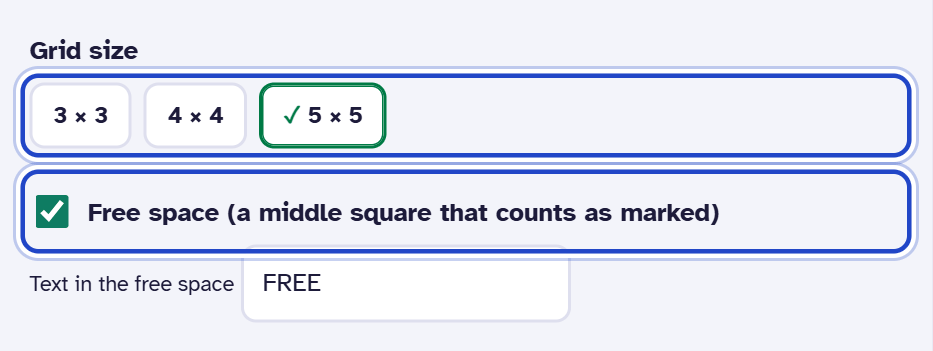
Cards come in 3 × 3, 4 × 4 or 5 × 5. The free space is the middle square, and it counts as already marked. You can change its text from FREE to anything you like.
How many cards, and every card different
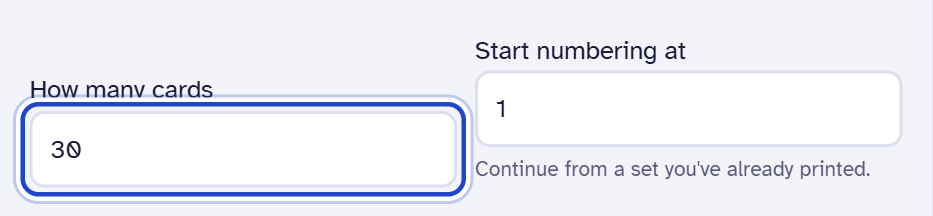
Type how many cards you need, up to 500. Every card is shuffled differently, so no two players hold the same card. Each card has a number in its corner, which the caller uses to check a winner. Printing more later? Set Start numbering at to carry on from where the last set ended.
If your list is too short to make that many different cards, the maker says so and asks for more items or fewer cards.
Download and print
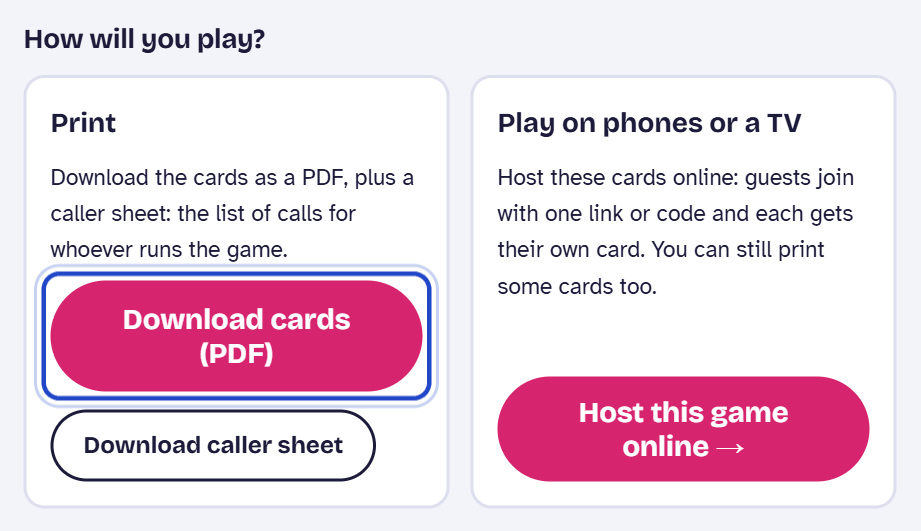
In step 3, press Download cards (PDF). You can choose US Letter or A4 paper, 1, 2 or 4 cards per page, cut lines, ink saver and large print. Download caller sheet (the printed list of calls) gives the list of calls for whoever runs the game.
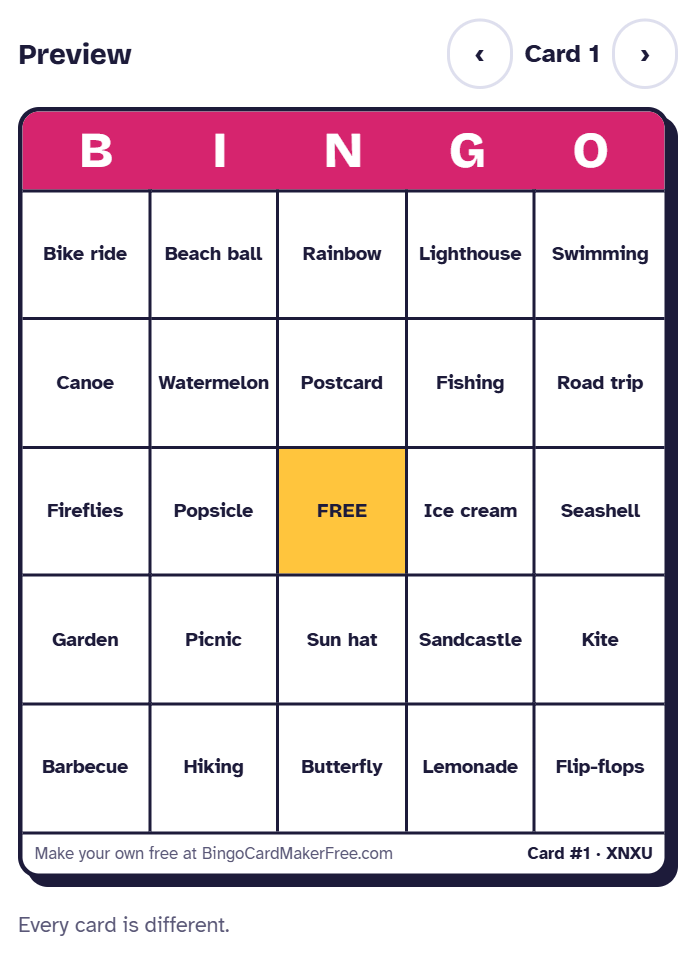
The preview shows what the cards will look like. Use the arrows to flip between cards.
What the printed page looks like
With 4 cards per page, each sheet has four different cards and dashed lines to cut along. Under each card is its card number and the set's short code.
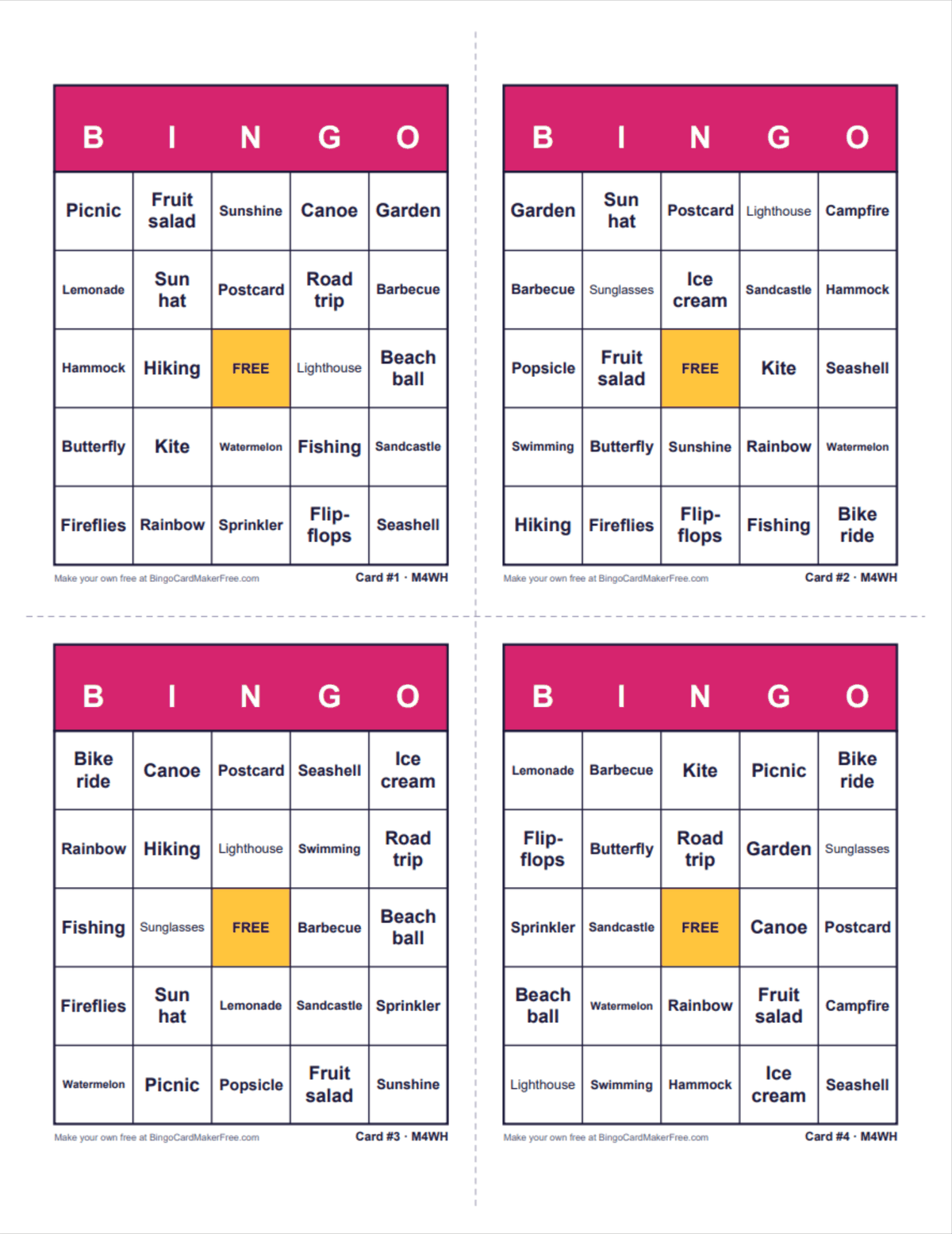
Hosting a game online
Starting a game
Make your cards in the maker, then choose Host this game online in step 3. You can also start from the bingo caller with Set up a full game instead. A few questions set the game up. The first is how people get their cards: printed, on phones or computers, or both.
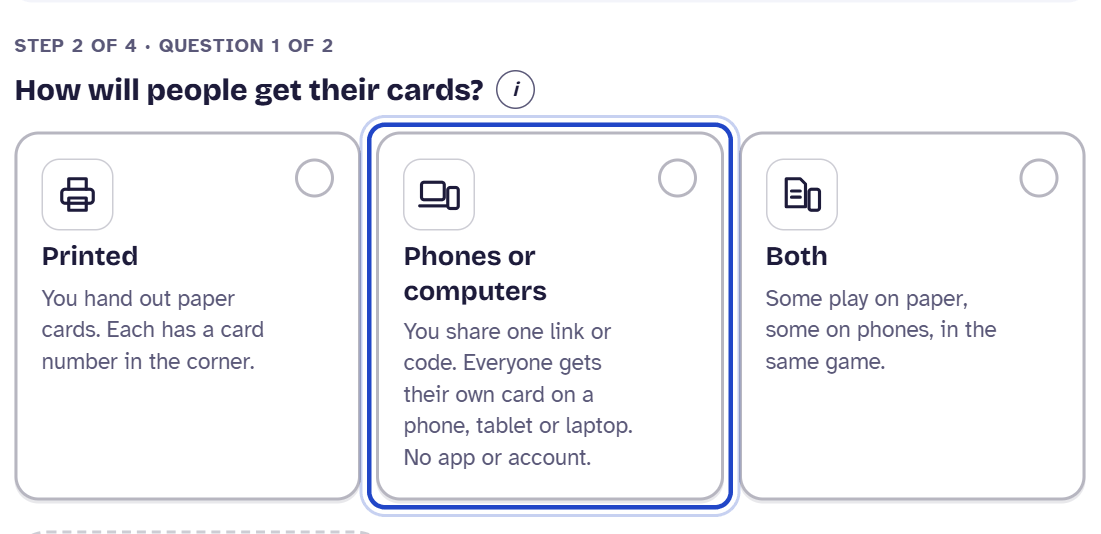
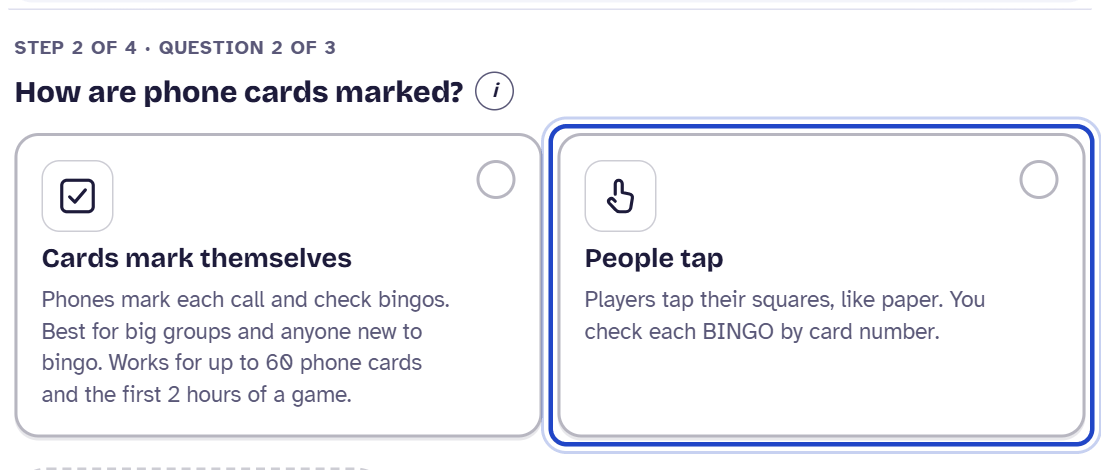
For phone cards, choose how squares get marked. Cards mark themselves, or people tap their own squares, like paper. Cards that mark themselves work for up to 60 phone cards and the first 2 hours of a game.
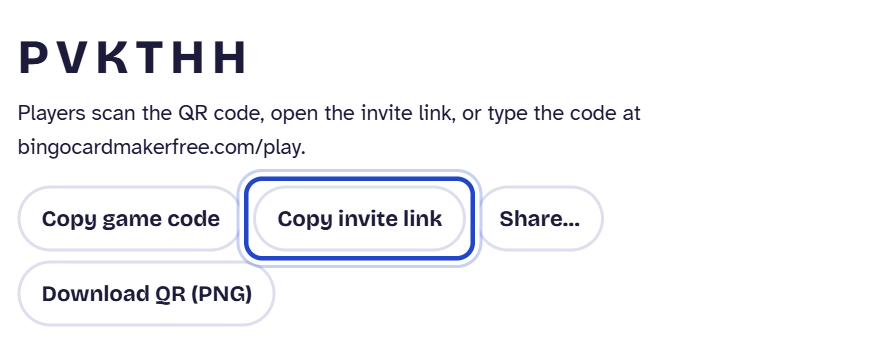
Then choose Today, or Another day to save a game code ahead of time. On the Review step, confirm, and your game code and invite link are made.
The link players join with
Players open the invite link, scan the QR code, or type the 6-character game code at bingocardmakerfree.com/play. Copy the invite link to paste into a group chat, an email or a video call chat.
What the host sees
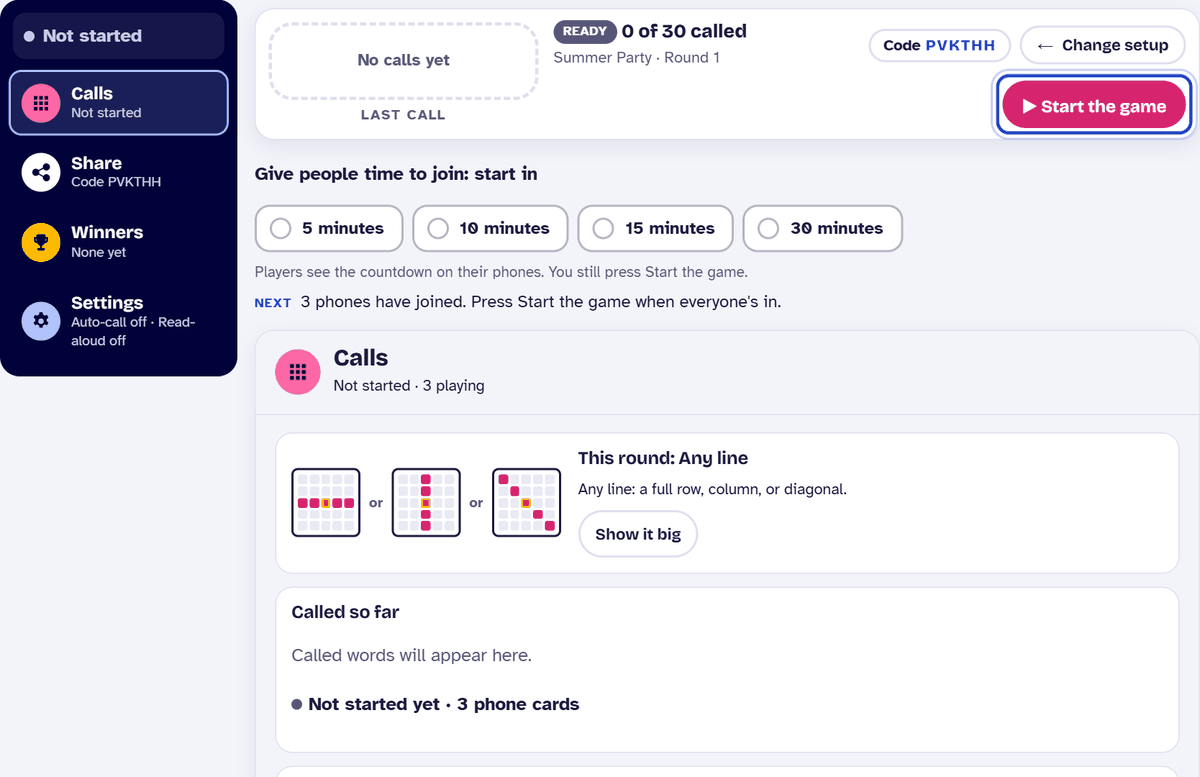
The host screen counts the phones that have joined. You can give people time to join with a 5, 10, 15 or 30 minute countdown; phones show it too. Press Start the game when everyone's in. The line marked NEXT always says what to do now.
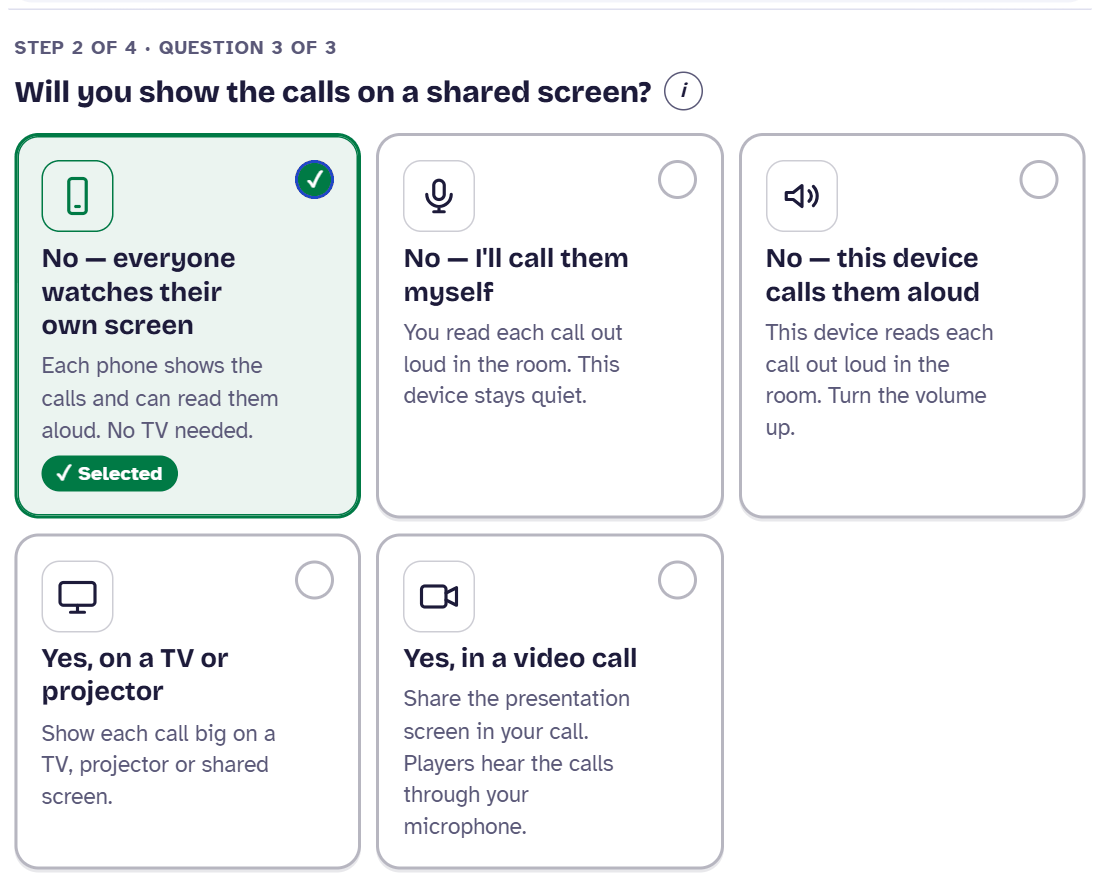
Choosing who calls the numbers out loud
One setup question asks whether the calls go up on a shared screen. Every phone shows every call, so this only decides what else happens in the room:
- No — everyone watches their own screen: each phone shows the calls, and each player can turn on read-aloud on their own phone. Nothing on a TV. For phone and computer games only.
- No — I'll call them myself: you read each call out loud. The host device stays quiet.
- No — this device calls them aloud: the host device reads each call out loud in the room. Turn its volume up.
- Yes, on a TV or projector: each call shows big on a shared screen.
- Yes, in a video call: you share the presentation screen in your call. See Playing over Zoom, Teams or Meet.
Running the rounds
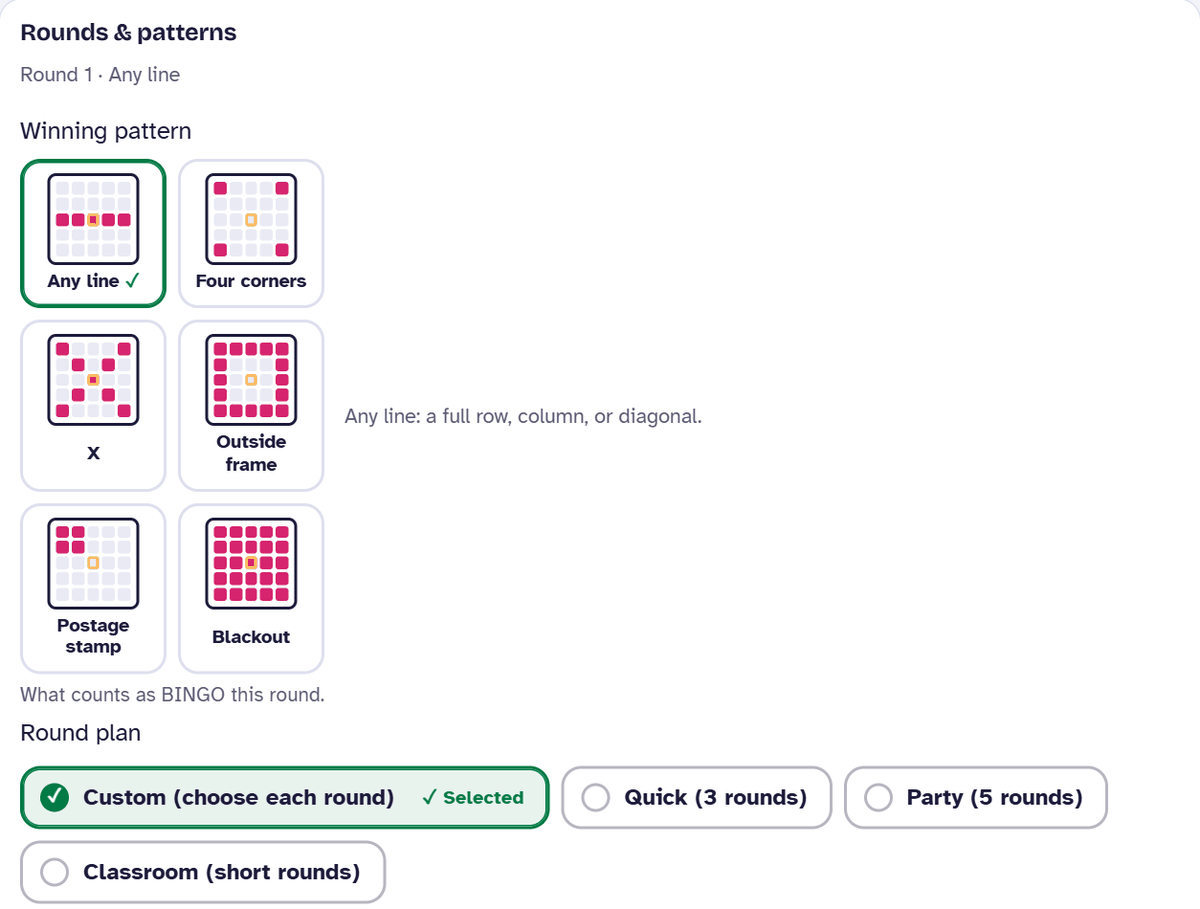
Press Call next, or the space bar, for each call. Undo takes back the last call. Auto-call calls every 10, 20 or 30 seconds. Break pauses for a set time. Each round has a winning pattern: any line, four corners, X, outside frame, postage stamp or blackout. In Settings, under Rounds & patterns, choose this round's pattern. A round plan picks the pattern for each round for you.
What a player sees
Joining from the link
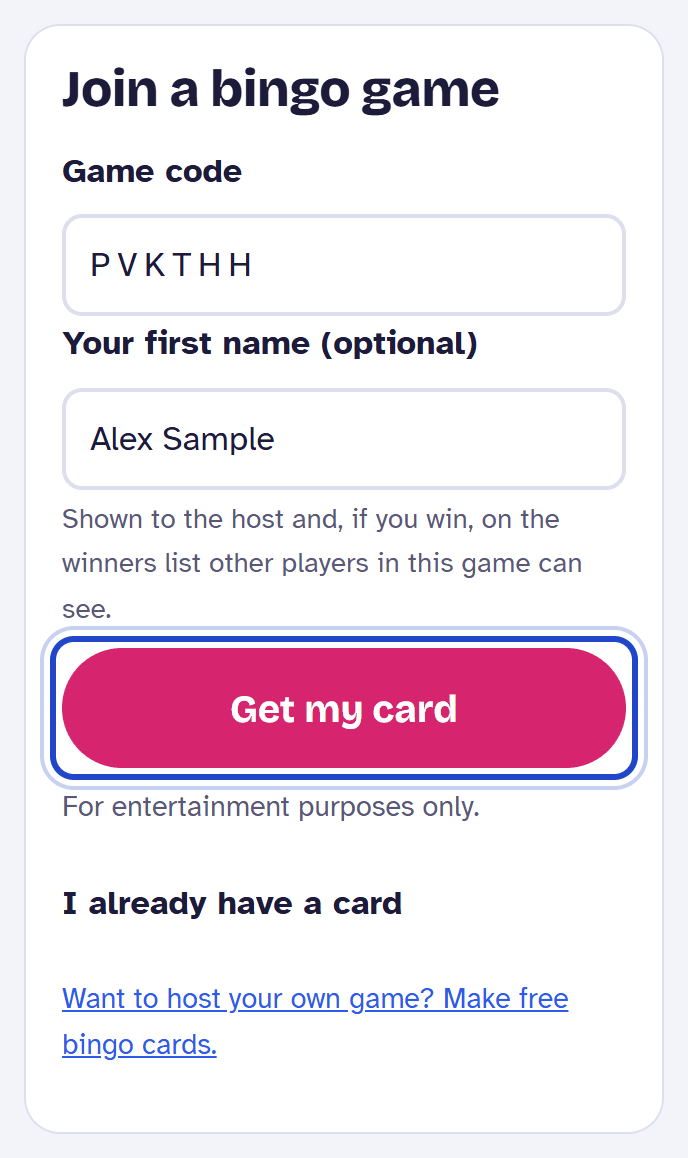
Players open the link on their phone. There is no app to download and no account. The game code is already filled in. A first name is optional. Press Get my card.
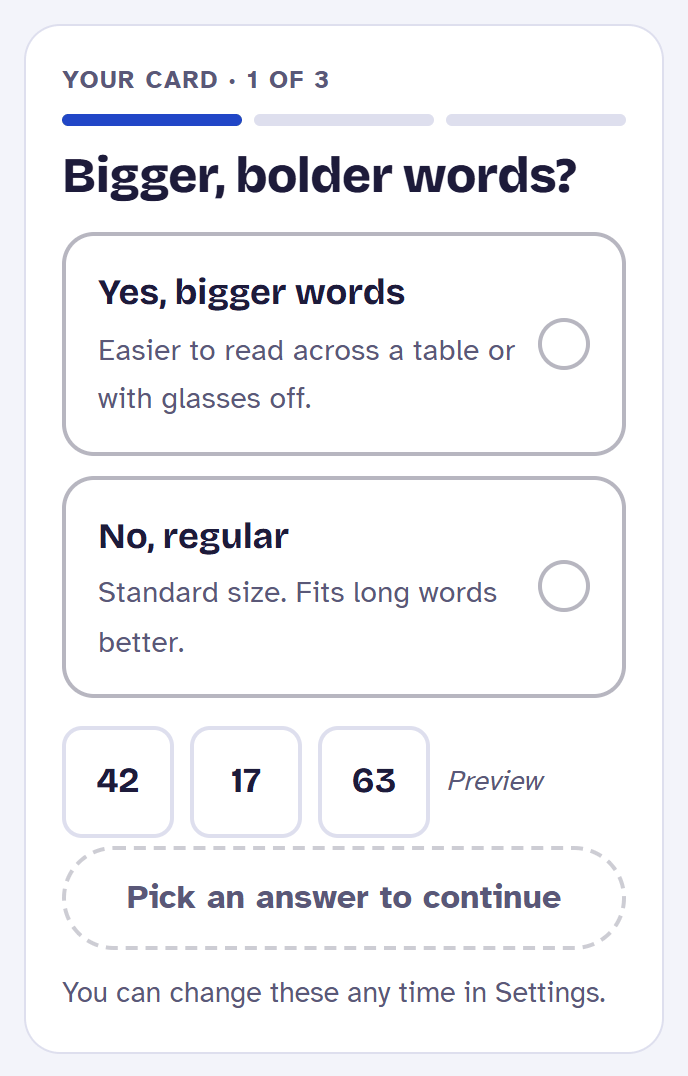
Three quick questions set the card up, such as bigger words and read-aloud. Players can change these any time in Settings.
The card and how calls appear
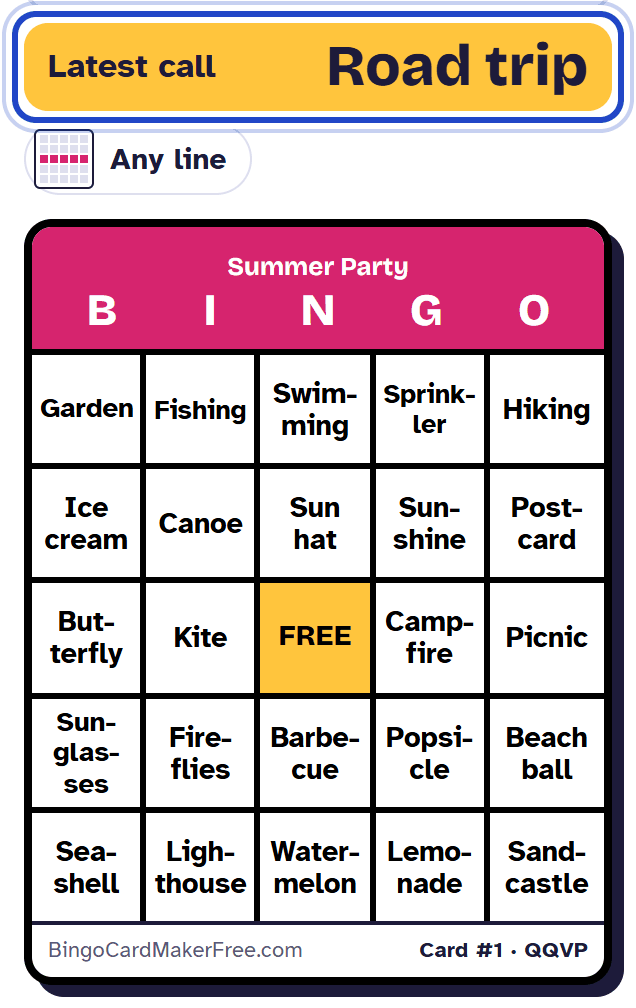
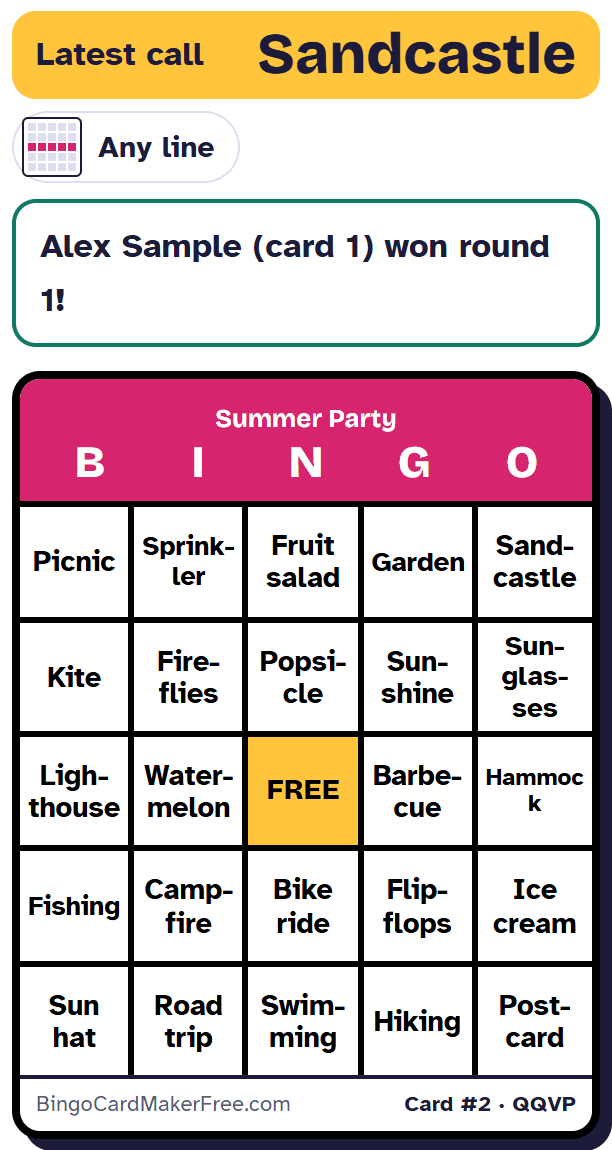
The latest call sits above the card in a yellow bar, so players never miss one. Under it, a small picture shows this round's winning pattern. The card's number is in its bottom corner.
Marking squares
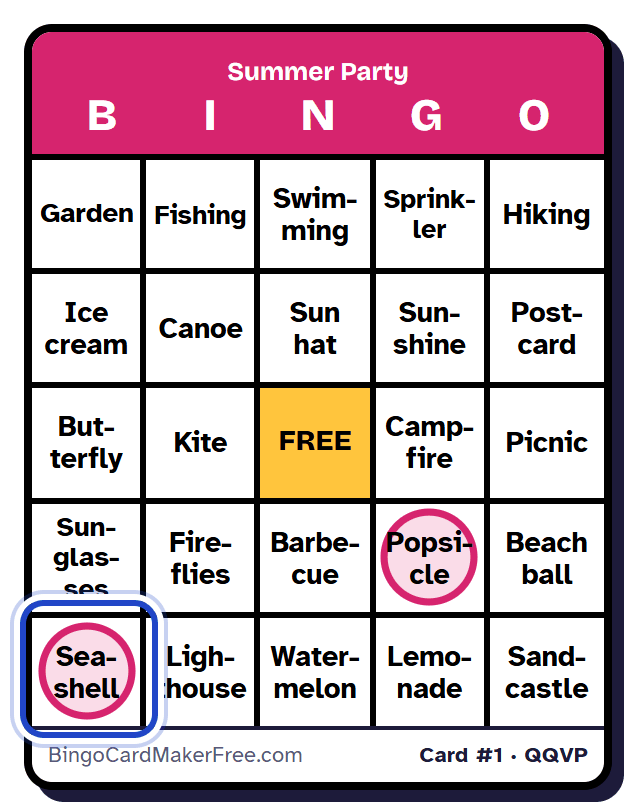
Tap a square to mark it when its word or number is called. Tap again to take the mark off. If the host chose cards that mark themselves, the phone marks each call by itself.
Calling BINGO
When a line is complete, press BINGO under the card.
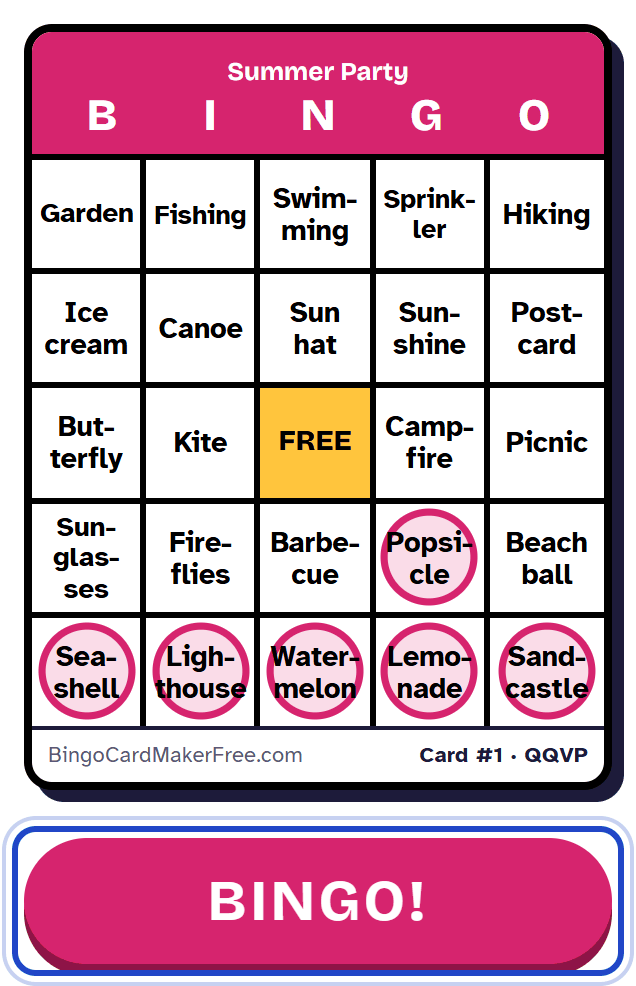
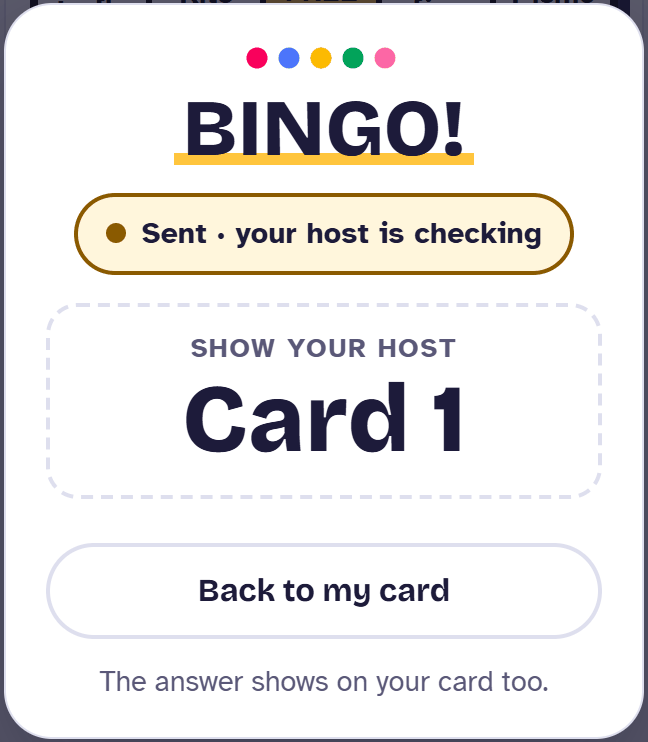
The phone tells the player their BINGO was sent and that the host is checking. It shows their card number in big letters, so they can hold it up in a room. The answer shows on the card too.
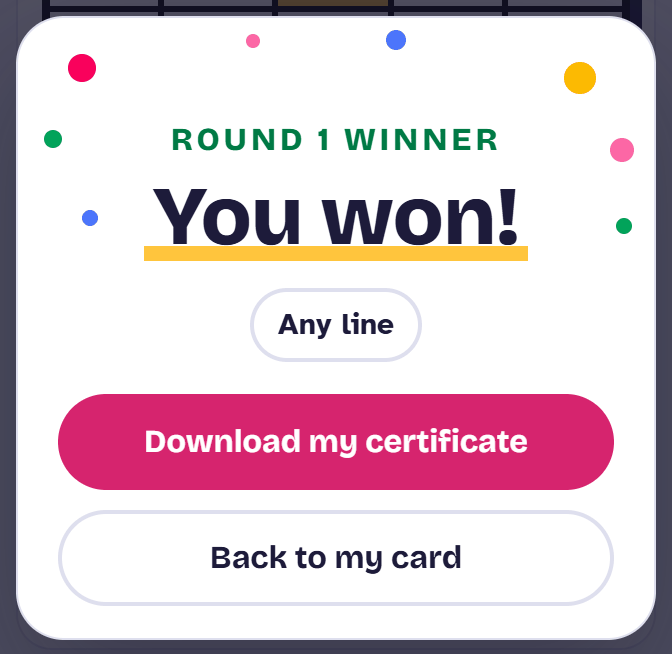
If it's a win, the phone celebrates and offers a winner certificate. If not, it says Not yet and the player keeps playing.
Confirming a winner
Checking the card
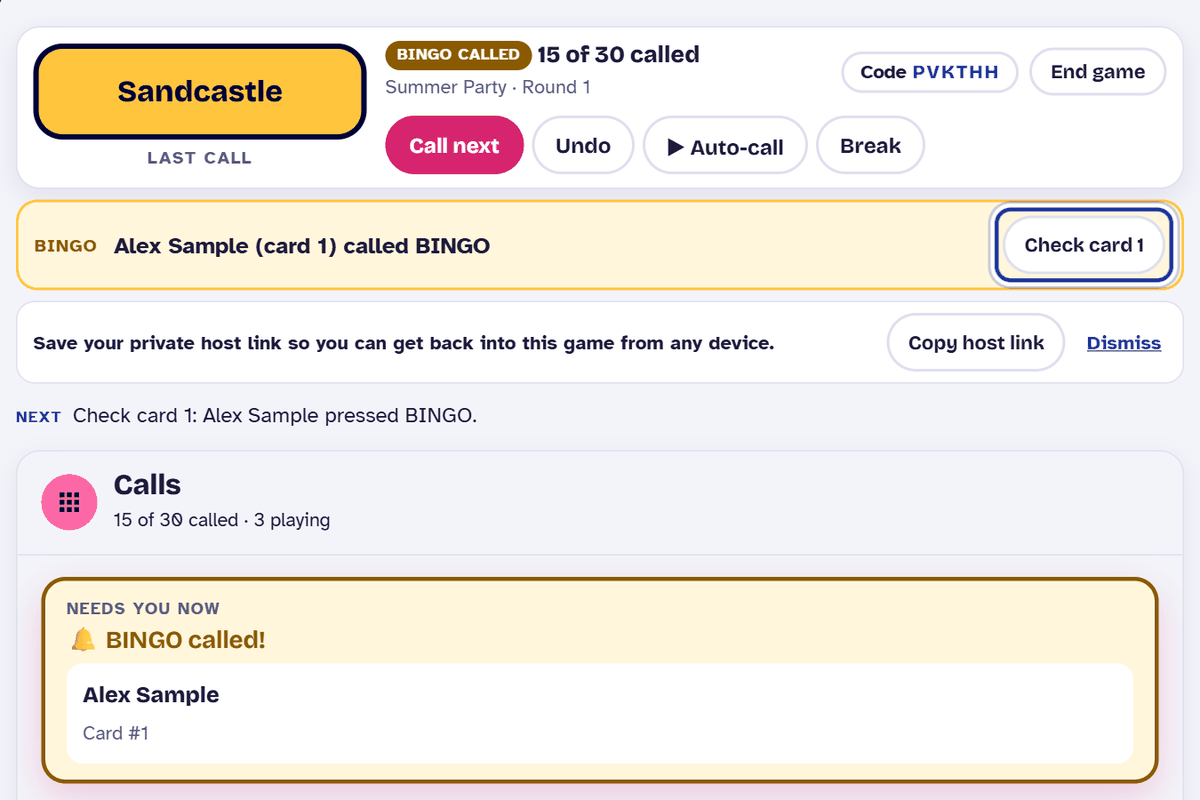
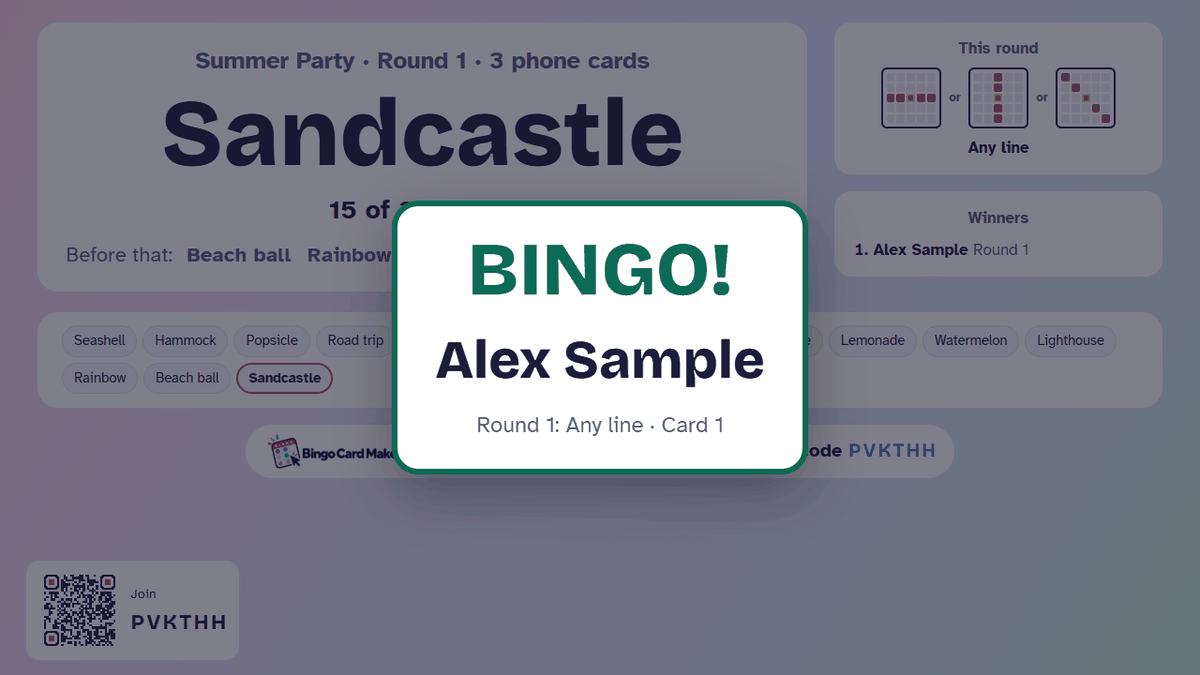
When a player presses BINGO, the host screen shows a yellow BINGO strip with their name and card number. Press Check card. The caller rebuilds that card and checks it against the calls made before they pressed BINGO.
Announcing
If the card wins, the strip says so and offers Announce winner. If it doesn't, Tell player not yet sends the answer to their phone.
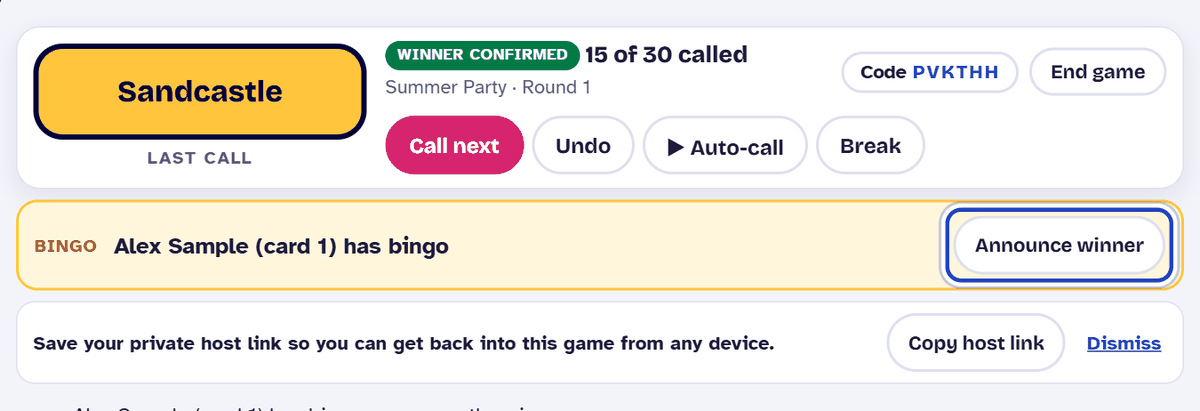
Announce winner shows the winner's name on the presentation screen and on the winner's phone, and adds them to Winners. Winners also has a printable certificate for each one.
Starting the next round
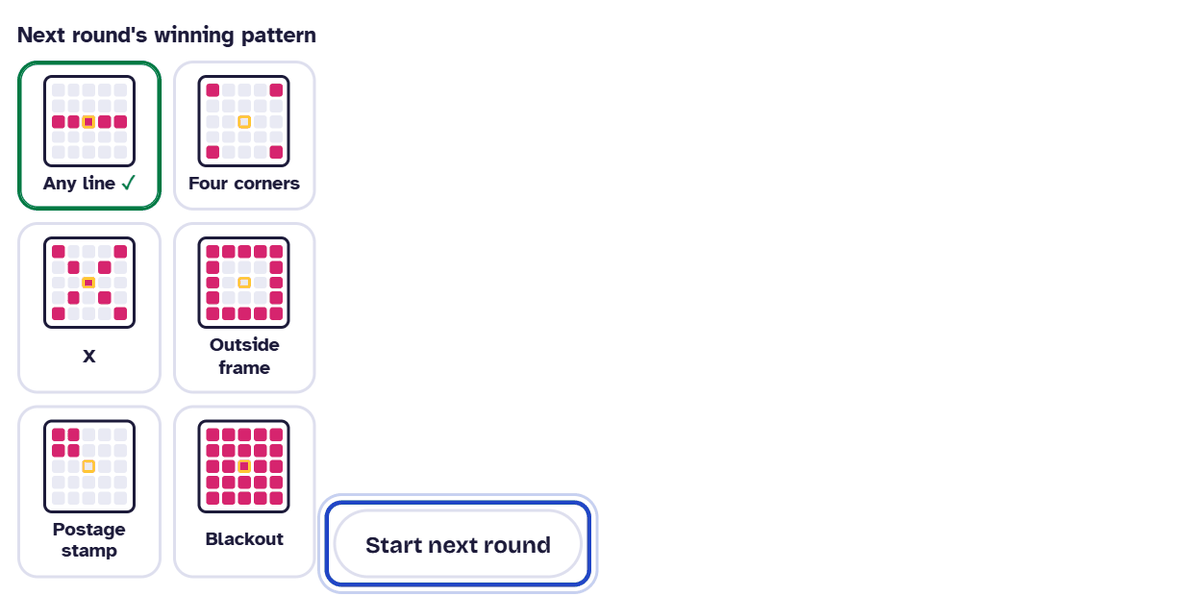
In Settings, under Rounds & patterns, choose the next round's winning pattern, then press Start next round.
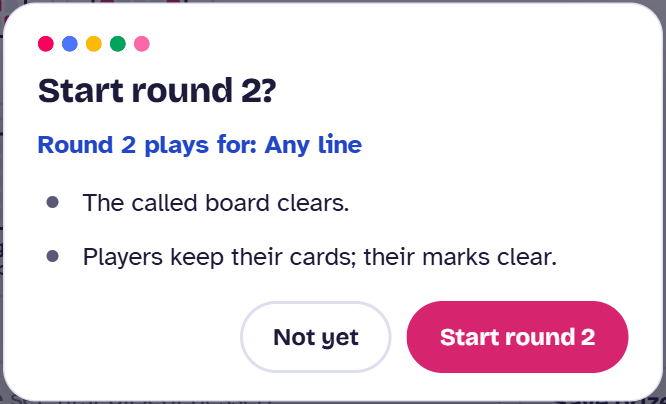
The caller asks you to confirm. The called board clears. Players keep their cards, and their marks clear.
Playing over Zoom, Teams or Meet
In a phone game, every player sees each call on their own phone, the moment it's called. Nobody needs to hear anything to play. Share the invite link in the call's chat, and people join from their phones while they stay in the call.
If you also want everyone to see the calls big, open the presentation screen. It opens in its own window, so share that window, and only that window. Never share the host screen or your whole screen: the host screen shows your private host link and the names of everyone playing.
On Google Meet, sharing the tab's sound doesn't carry the read-aloud voice: we measured it. On Zoom and Teams we haven't measured it, so don't rely on it.
If anyone is playing on a paper card, they need to hear a person: read each call aloud into your microphone. They only see the calls you share and hear the calls you read.
The number caller on its own
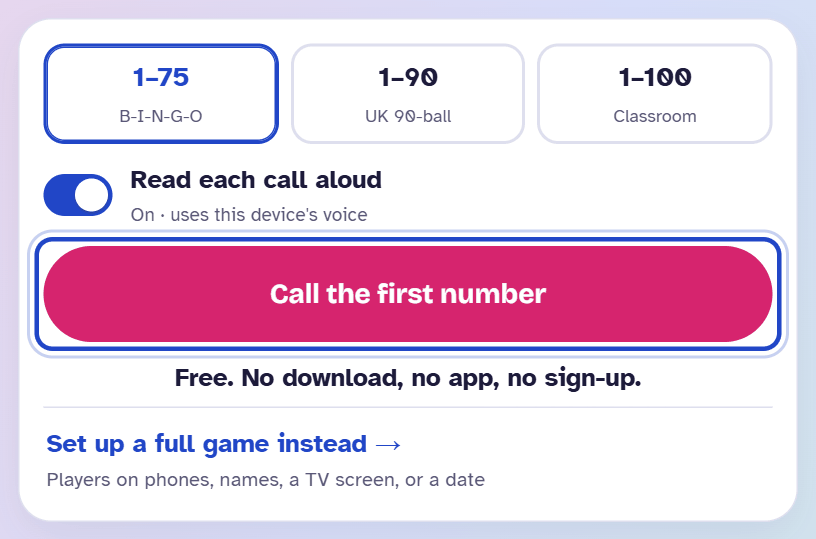
For a room with printed cards, the bingo caller can just call numbers. Choose 1–75 (B-I-N-G-O, called with a letter, like B-7), 1–90 (UK 90-ball) or 1–100 (Classroom). Read each call aloud is on, using this device's voice. Then press Call the first number.
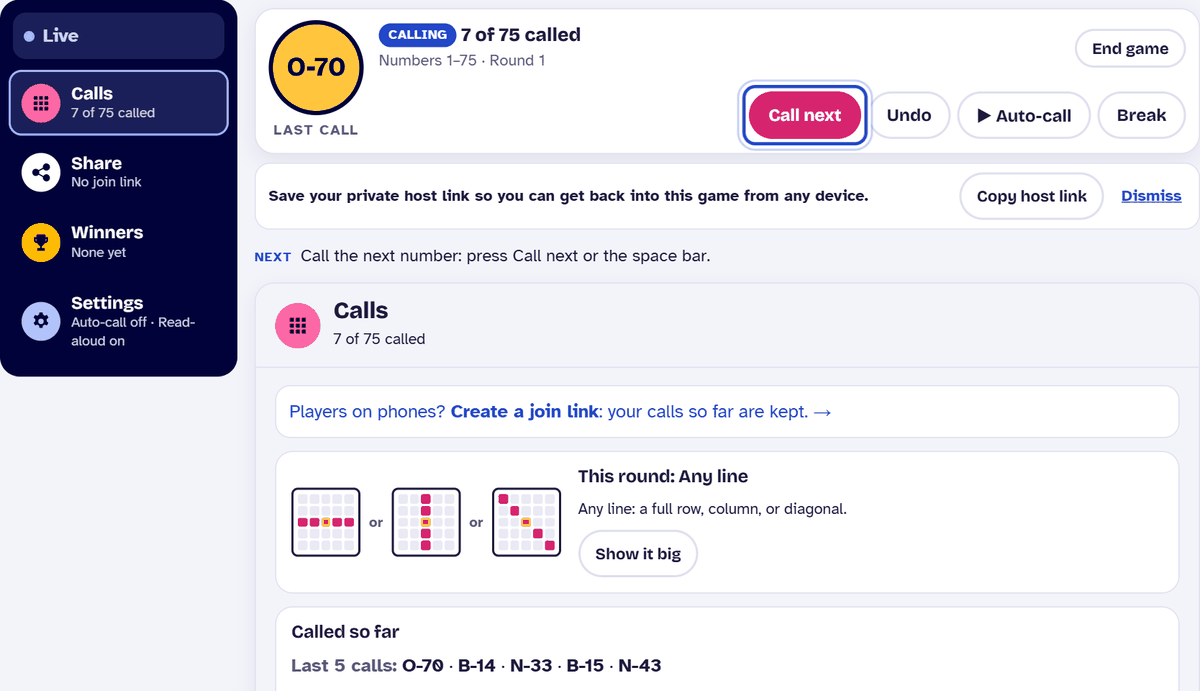
Each call shows big, with the last few calls under it and a board of everything called. Press Call next or the space bar for the next one. U undoes, and P starts or pauses auto-call.
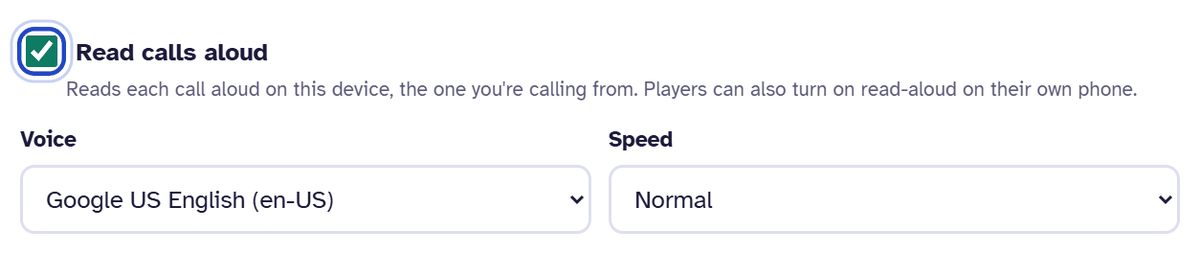
To change the voice or how fast it reads, go to Settings. The voice comes from the device you call on, so turn its volume up.
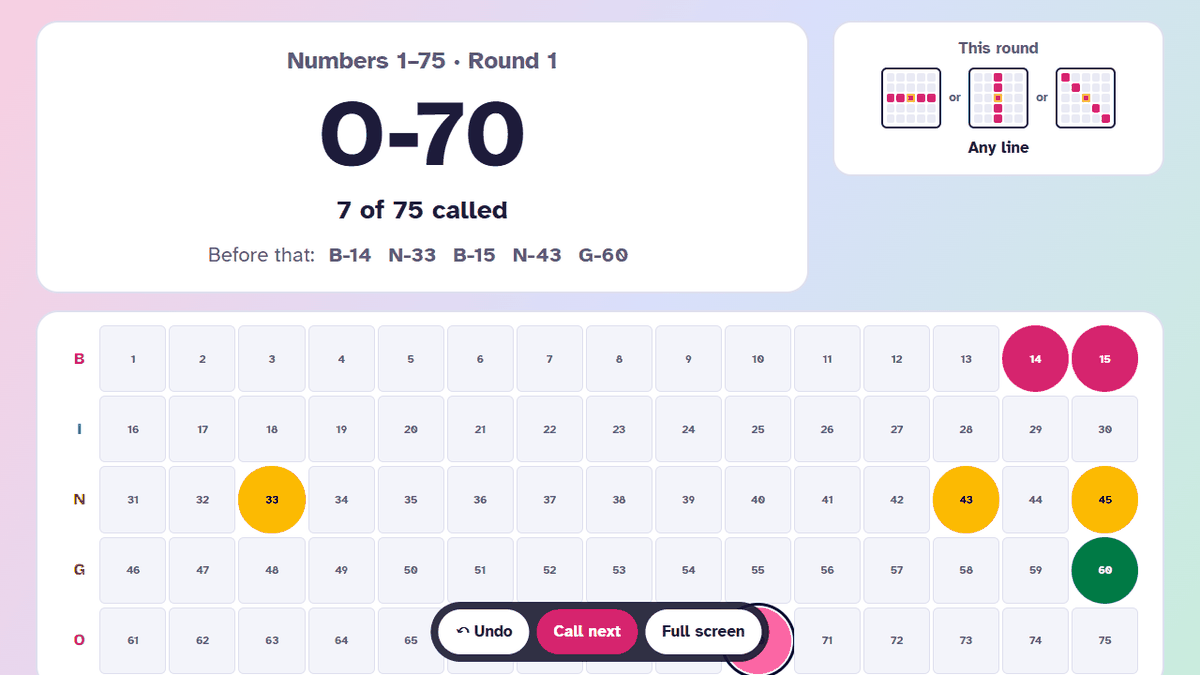
For a TV or projector, open the presentation screen from Share. It shows the current call big, the board of every call, and this round's pattern. Full screen fills the TV.
Checking a printed card by its number needs the set the cards came from. Host from the card maker with Host this game online, and the caller can rebuild any card. The QR code on the caller sheet reopens the set in the maker on any device.
Other printables
90-ball tickets
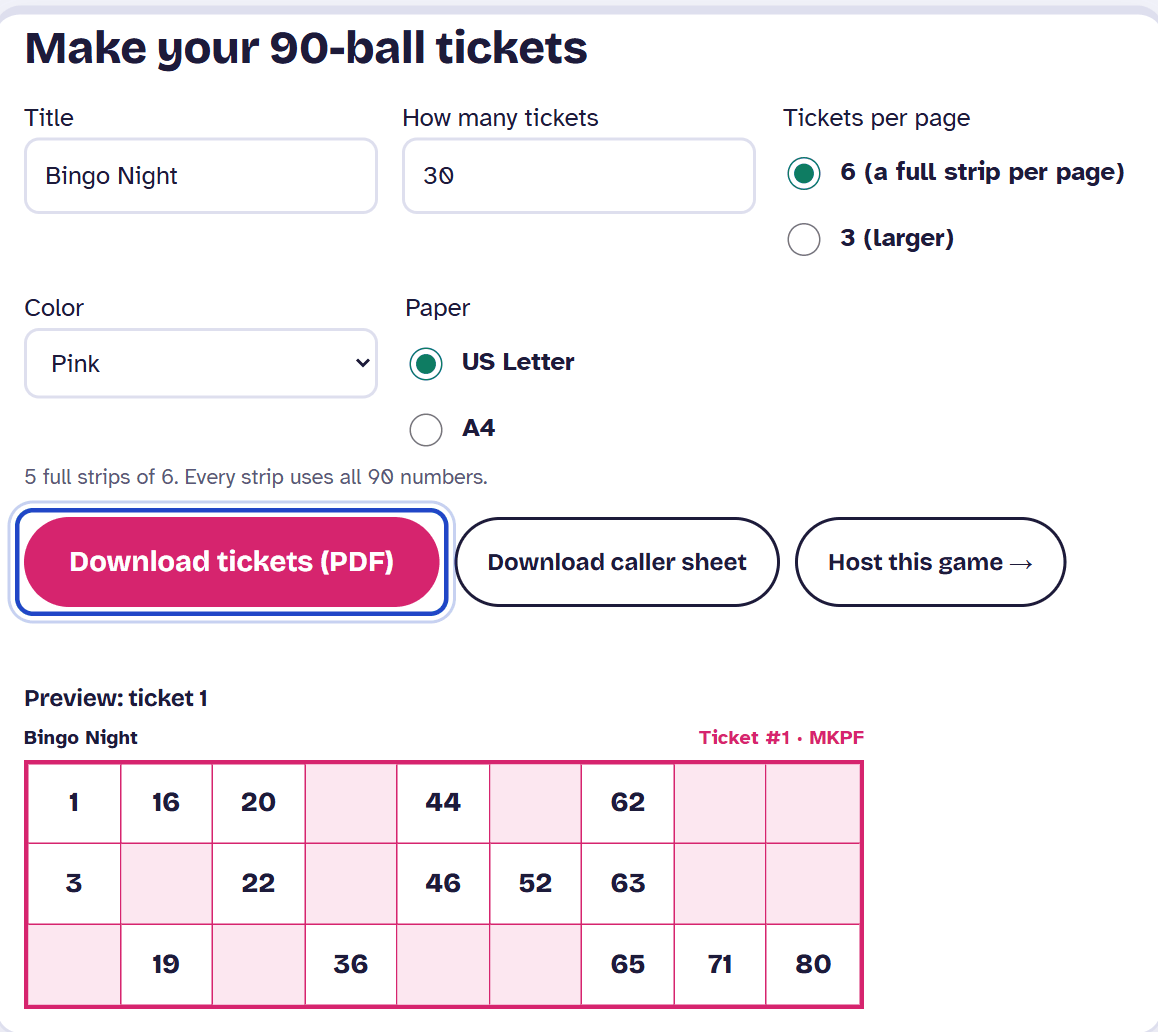
The ticket generator prints UK-style 90-ball tickets: 3 rows of 9, five numbers a row. Choose 6 tickets per page (a full strip that uses all 90 numbers) or 3 larger ones, a color, and the paper size. It has its own caller sheet too.
Blank fill-in cards
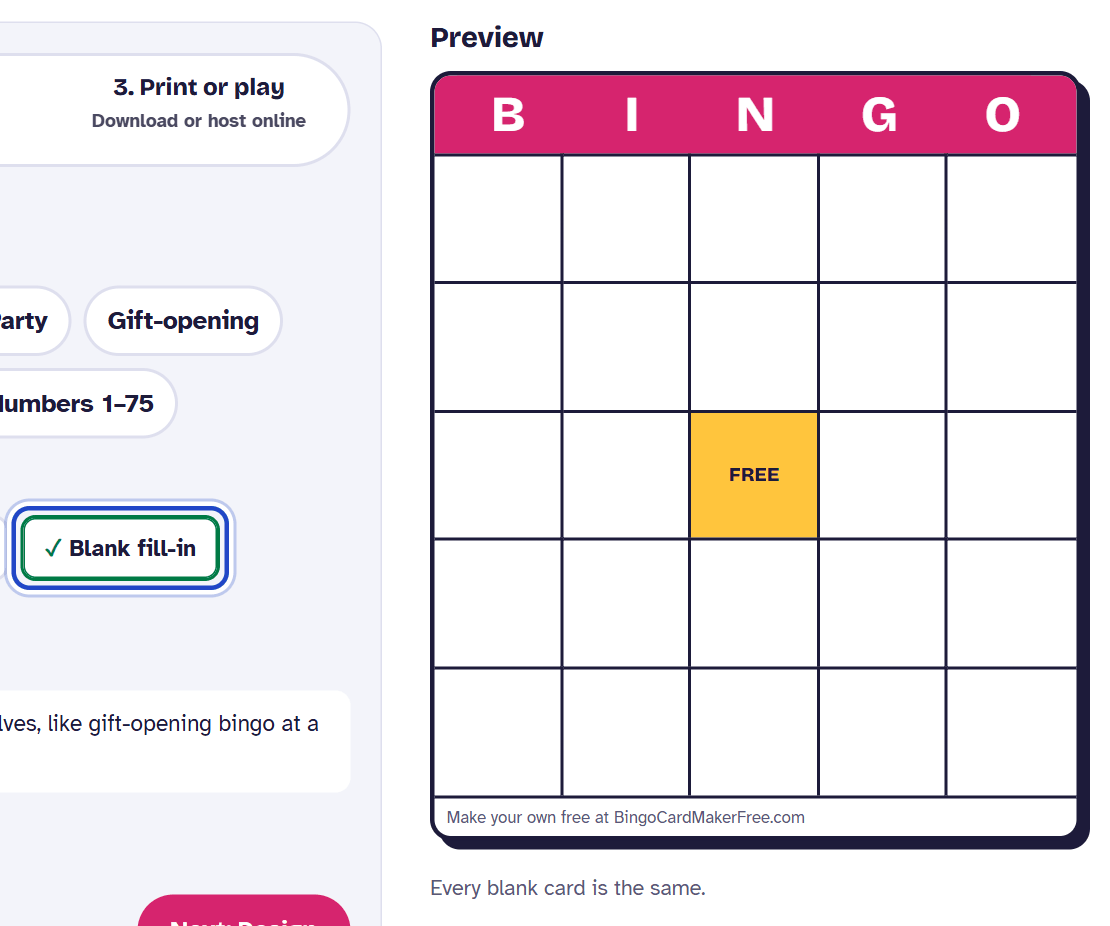
Choose Blank fill-in as the card type in the maker for an empty grid that players fill in themselves. Every blank card is the same, so print as many as you need. More in the bingo card template guide.
Caller sheet and call slips
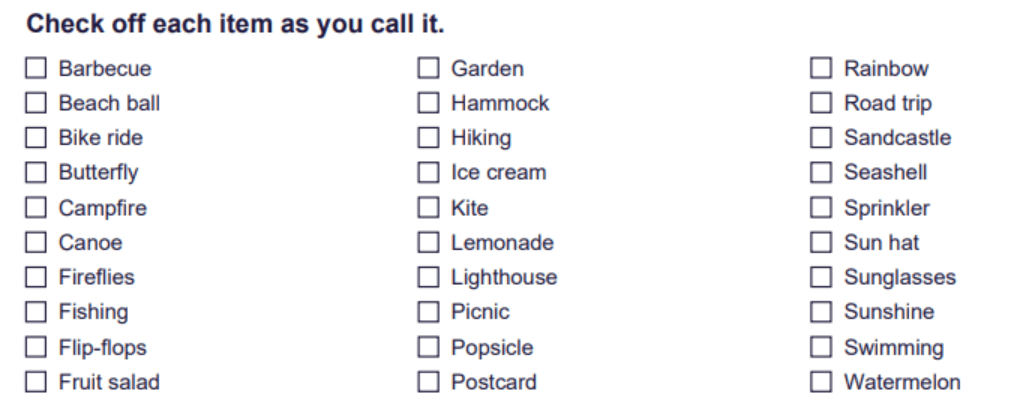
Download caller sheet lists every call in your set to tick off as you go. Its QR code reopens the set on any device. Tick Call slips to cut out and draw from a hat to add pages of slips. A how-to-play page is included unless you untick it.
Also in the maker
Find someone who cards for icebreakers, with a line for a name in each square; see find someone who bingo. Winner certificates come from Winners on the host screen, or from Download my certificate on a winning phone.
Troubleshooting
There's no sound
Read-aloud plays on the device you call from. Check Read calls aloud in Settings, and turn that device's volume up. Players can also turn on read-aloud on their own phone. It works for the first 2 hours of a game, for up to 50 games a day across the site. When it isn't available, the phone says so, and the host can read the calls out loud.
A player can't join
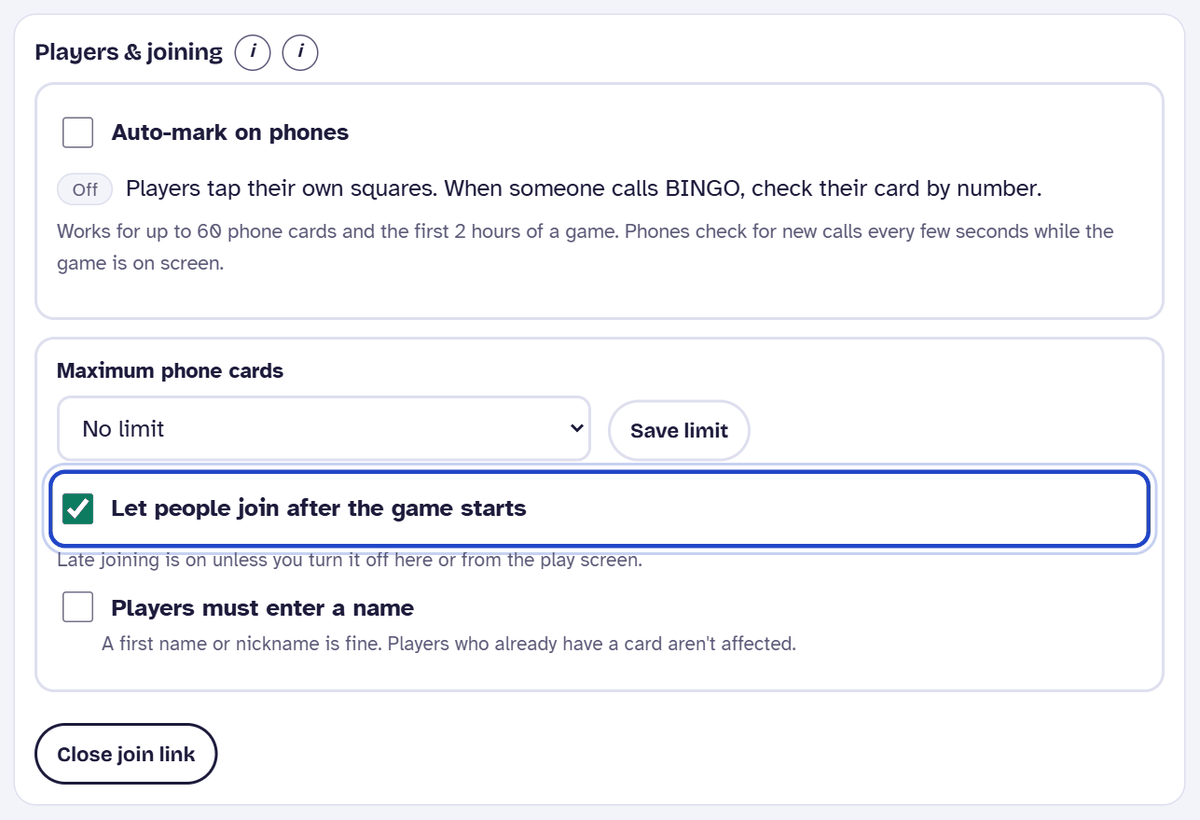
Check the code with them: it's 6 characters. If the phone says it couldn't find that game, the code is wrong, or the game closed: games close 48 hours after they were last used. If it says joining is closed for late players, tick Let people join after the game starts (below). If it says the host has closed joining, that join link is closed for good: Close join link can't be undone, so use it only when everyone's in.
Someone joined late
Late joining is on unless you turn it off, so a late player can join from the same link at any point and gets a card straight away. To stop new players mid-game, untick Let people join after the game starts in Settings, under Players & joining. It saves as soon as you tick it.
A player closed their page
On the same phone, opening the link again brings the card back. On another device, use I already have a card with the card number and the recovery code shown on their card.
The host lost their link
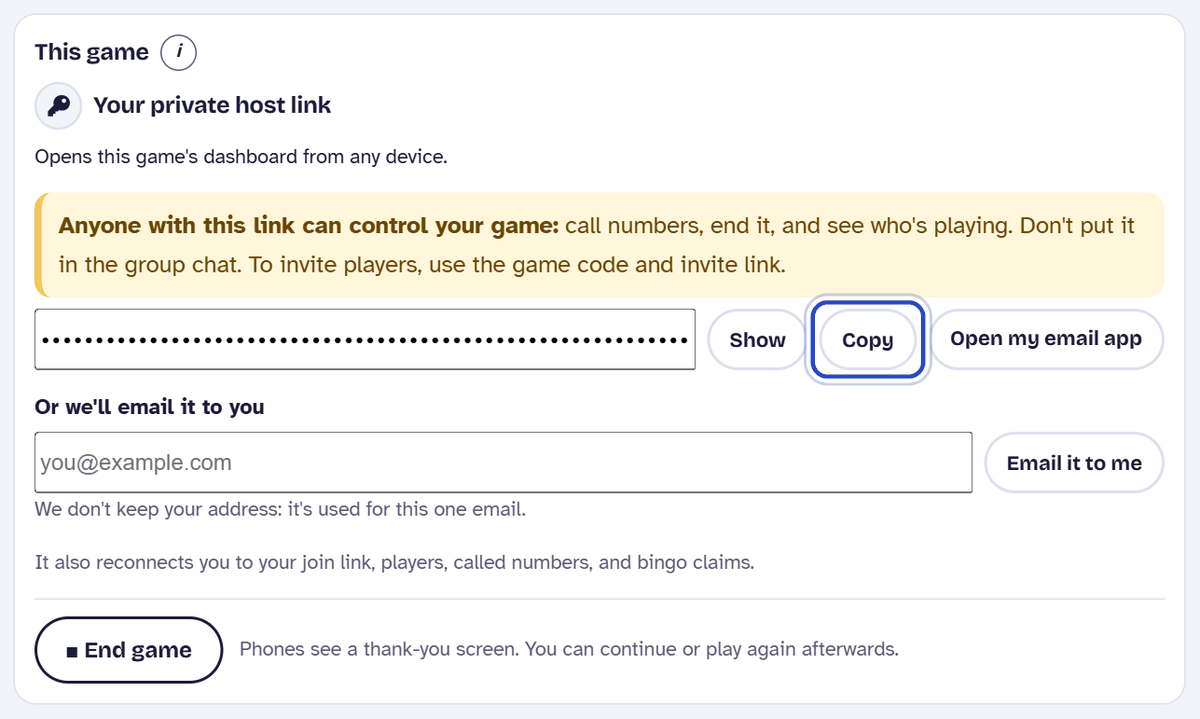
On the same device, the caller page shows a Resume strip for the game. To get back in from any device, use your private host link: copy it, or have it emailed to you, from Settings, under This game. Save it before the game starts. Keep it to yourself: anyone with it can control your game.
The game needs restarting
A wrong call? Undo takes it back. To start again from scratch, press End game: phones see a thank-you screen. Then choose Play again for the same cards, or New game for new cards.